




Slack bots are one of the easiest ways to automate team communication. Instead of manually posting reminders, updates, alerts, or notifications, you can create a bot that sends messages automatically to your Slack channels.
In this guide, you’ll learn how to create a Slack workspace, build a Slack app, get the required credentials, and automate Slack messages using MiniMax without writing backend code.
🧠 What You Will Build
- • A working Slack bot
- • A Slack app with bot permissions
- • A MiniMax AI workflow
- • Automated Slack messages
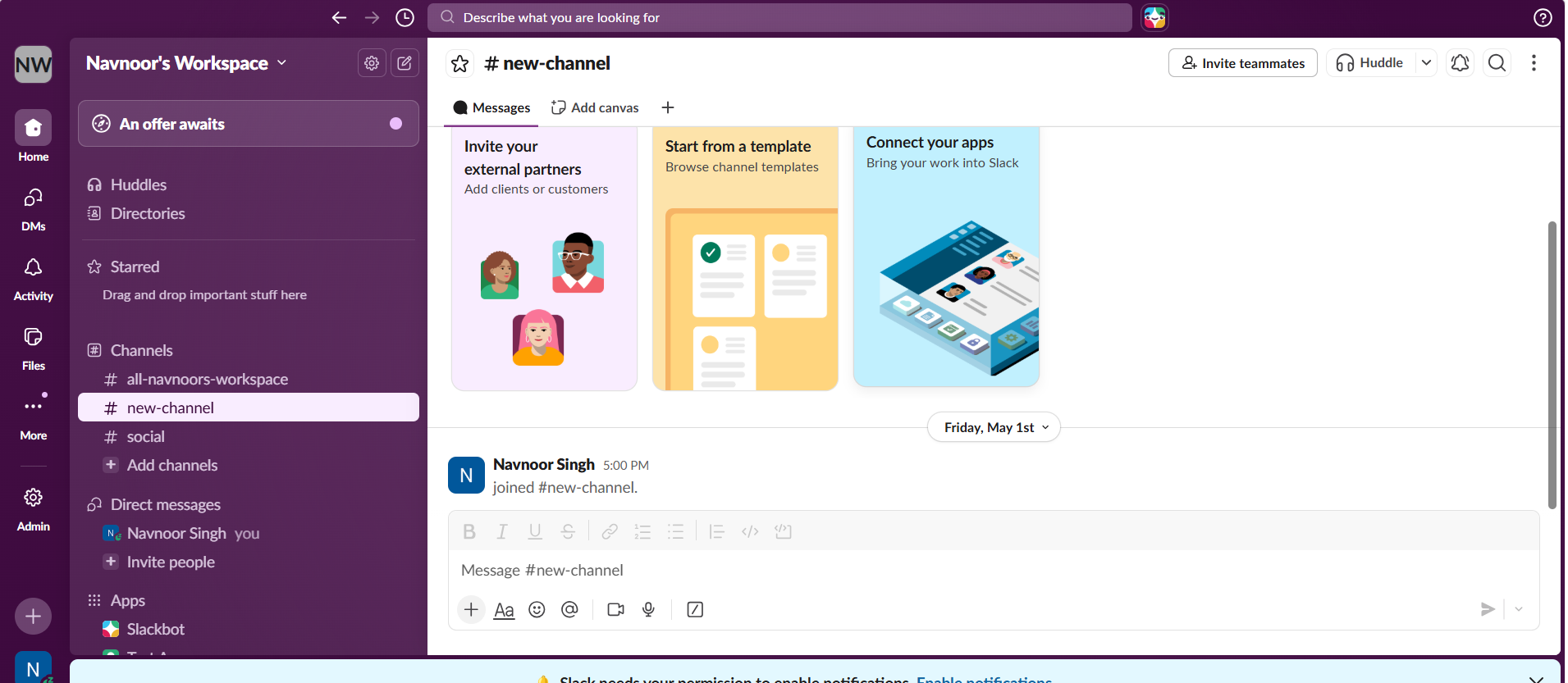
⚙️ Step 1 — Create a Slack Workspace
Before creating a bot, you need a Slack workspace where the bot can be installed and tested. Your workspace is where channels, teammates, apps, and bot messages will live.
Go to Slack and create a workspace. If you already have one, you can skip this step and use your existing workspace.
🧩 Step 2 — Create a Slack App
Now open the Slack API dashboard and create a new app. This app will become the base of your Slack bot.
Select:
- • Create New App
- • From Scratch
Enter your app name and select the workspace where you want to install it.
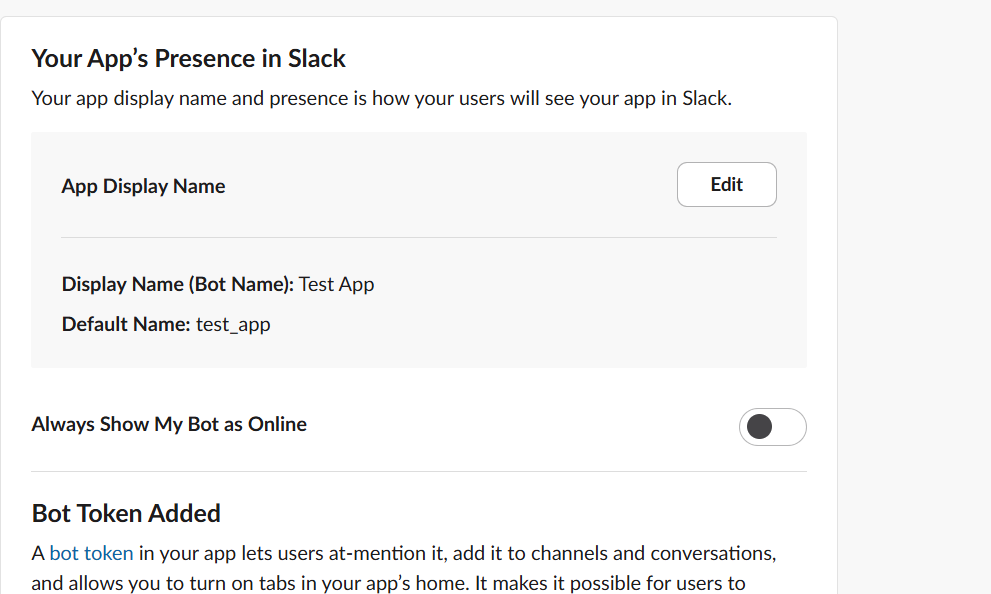
You can check your bot’s display name and default username from the app settings. This is useful because you will need the bot name later when inviting it to a Slack channel.
🔑 Step 3 — Add Bot Permissions
Permissions decide what your bot can do inside Slack. To send messages, your bot needs message-writing permission.
Open:
OAuth & PermissionsAdd these Bot Token Scopes:
- • chat:write — allows the bot to send messages
- • channels:read — allows the bot to read public channel information
After adding permissions, reinstall the app to your workspace so the new scopes are applied properly.
🚀 Step 4 — Install App to Workspace
Click:
Install to WorkspaceAfter installation, Slack will generate your:
SLACK_BOT_TOKEN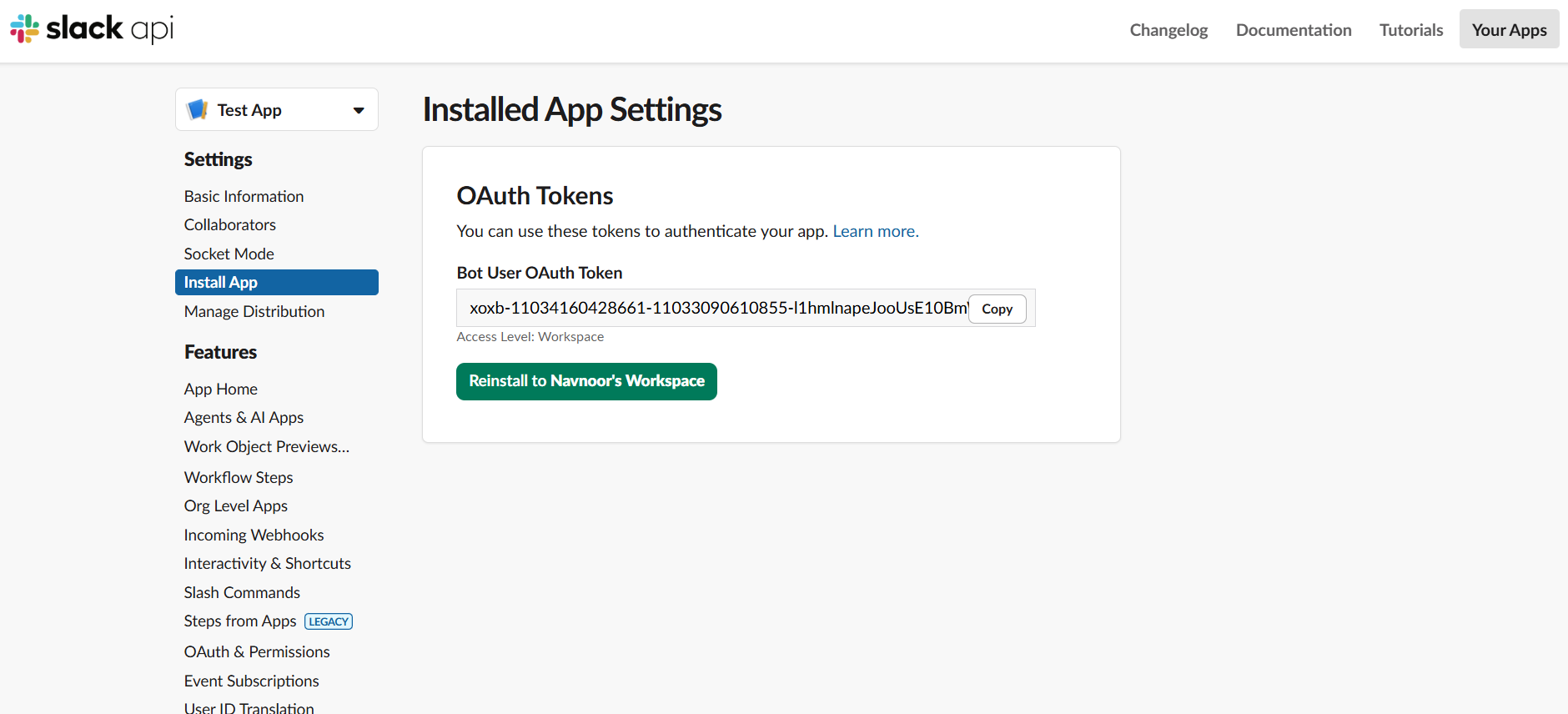
Keep this token secure. Never add it to public code, screenshots, GitHub repositories, or client-facing documents.
📌 Step 5 — Add Bot to Slack Channel
Creating and installing the bot is not enough. The bot must also be added to the channel where it needs to send messages.
Open your Slack channel and invite the bot using:
/invite @your_bot_nameExample:
/invite @test_appOnce the bot is added, it can send messages into that channel.
🆔 Step 6 — Get Channel ID
MiniMax will need the Slack channel ID, not just the channel name.
Open your Slack channel in the browser and copy the ID from the URL.
Example:
https://app.slack.com/client/TXXXXXXX/C09ABC12345The part starting with C is your:
SLACK_CHANNEL_ID🤖 Step 7 — Create MiniMax Workflow
Now open MiniMax and create a new agent or workflow for Slack messaging. You can name it something simple like:
Slack Bot Message ChannelAdd these secrets in MiniMax:
- • SLACK_BOT_TOKEN
- • SLACK_CHANNEL_ID
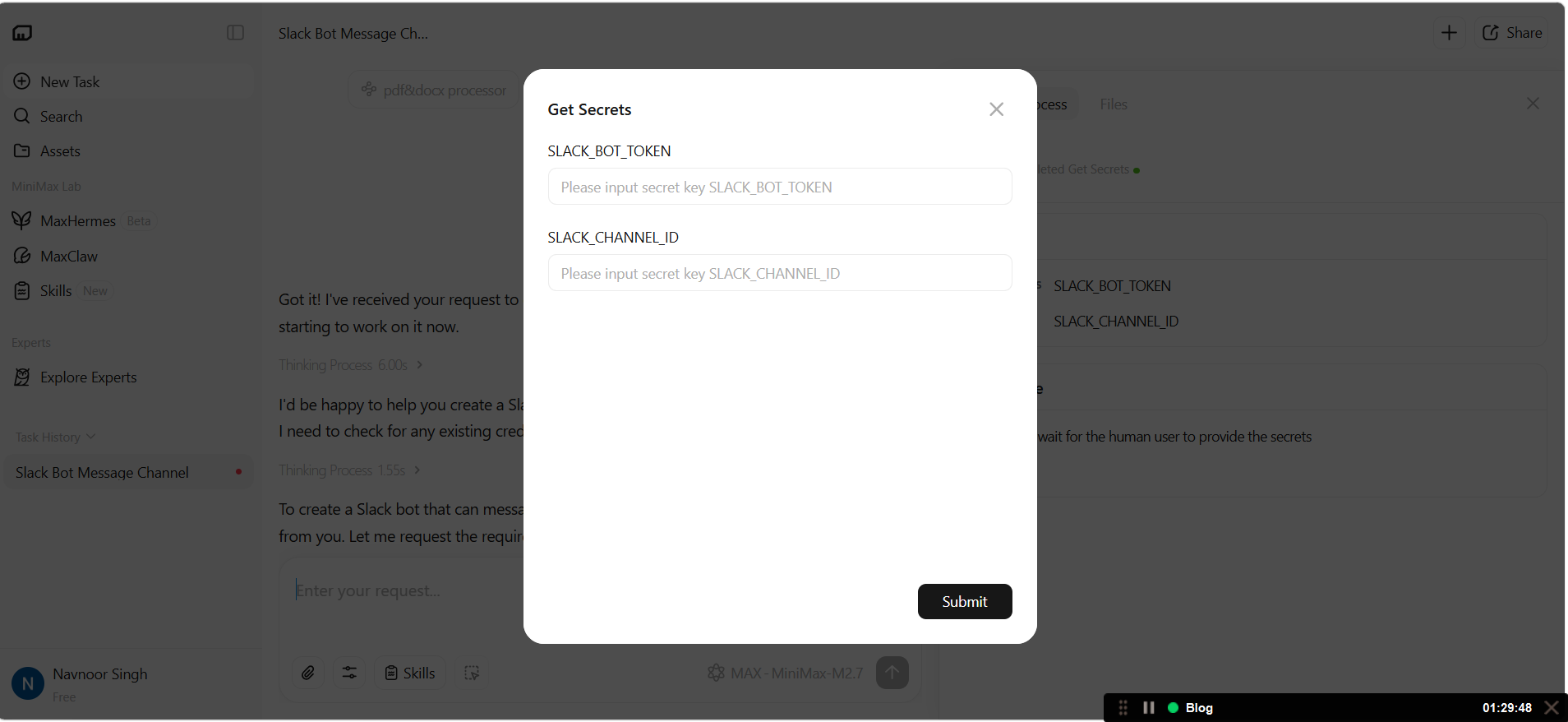
These values allow MiniMax to authenticate your Slack bot and send messages to the correct channel.
🧠 Step 8 — Give Instructions to MiniMax
Connecting Slack is only the first step. Your MiniMax agent also needs clear instructions so it knows when and how to send messages.
Use this instruction:
You are a Slack automation assistant.

Whenever I ask you to send a Slack message,
post it to the configured Slack channel.

Keep messages short, clear, and professional.

After sending the message, confirm that it was sent.
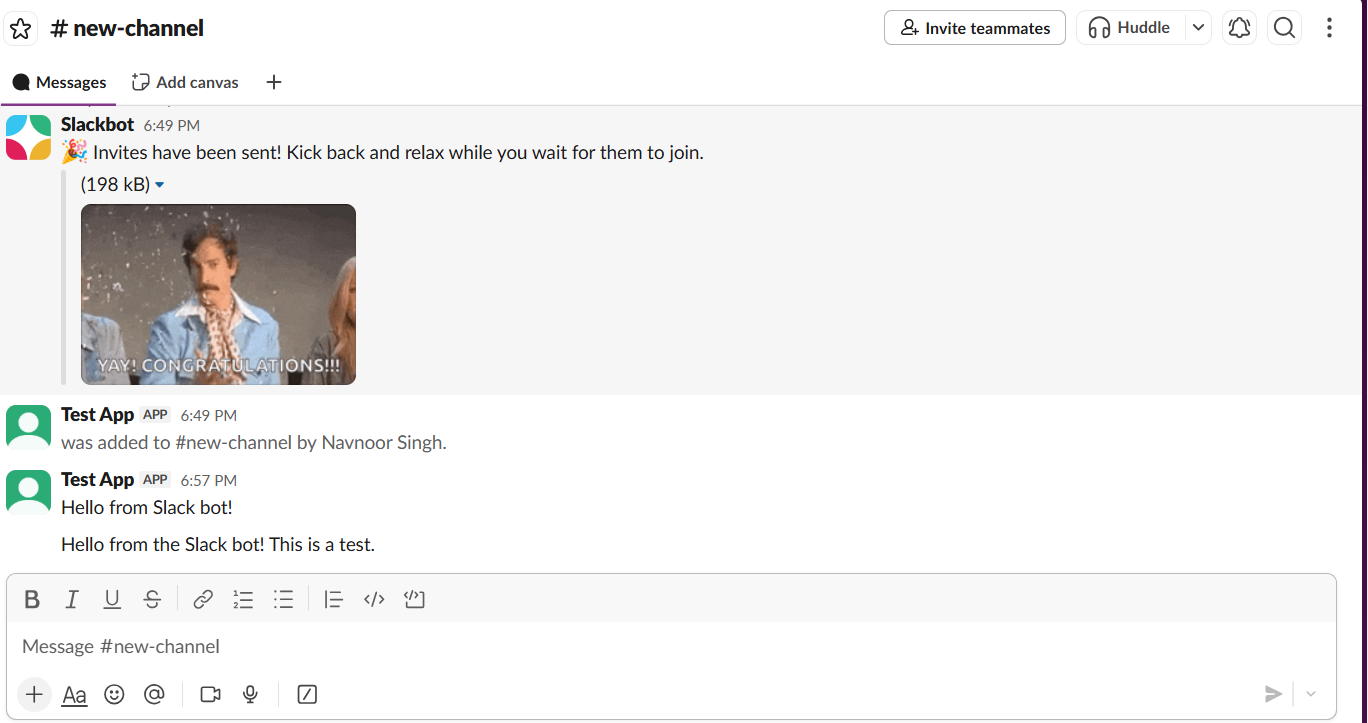
🧪 Step 9 — Test Slack Automation
Test your workflow with a simple message:
Send a Slack message:
Hello from my AI Slack bot 🚀
If everything is configured correctly, the message will appear in your Slack channel.
📊 Real Use Cases
- • Daily reminders
- • AI-generated team updates
- • Deployment notifications
- • Error alerts
- • Support notifications
- • Client task updates
Teams like Weblianz often use AI-powered Slack workflows to reduce manual communication, automate updates, and improve internal collaboration without building overly complex systems.
⚠️ Common Issues
If your bot does not send messages, check these things first:
- • Make sure the bot is added to the channel
- • Verify the Slack channel ID
- • Check the bot token
- • Ensure chat:write permission exists
- • Reinstall the app after changing permissions
🔐 Security Tips
- • Never share your Slack bot token publicly
- • Do not paste tokens in screenshots
- • Use secrets or environment variables
- • Rotate the token if it gets exposed
🎯 Final Thoughts
Slack bots are one of the fastest ways to automate team communication. With MiniMax, you can create AI-powered Slack workflows without managing backend infrastructure or writing custom code.
Start simple with basic notifications, then gradually expand into AI summaries, workflow updates, reminders, and business automation.